Showing posts with label android. Show all posts

Thursday, 4 October 2012

Liberare RAM e risparmiare batteria su Android

Android è un sistema operativo fantastico, ma tutti conoscono il suo principale problema: le applicazioni in background, possono avere una loro utilità, ma impallano il dispositivo perchè consumano troppa RAM e consumano troppa batteria, anche a schermo spento.
Per rimediare a questo problema sono nate dozzine di applicazioni, ma non è affatto detto che siano tutte valide, né che le più popolari siano le più valide.
Io le ho testate tutte su Samsung Galaxy Wonder, e ce ne sono due, una per liberare la RAM e una per il risparmio della batteria, che sono molto più efficaci: la prima è Smart RAM Booster e la seconda è Juice Defender. Entrambe la app hanno versioni "pro" a pagamento, ma quelle gratuite sono più che sufficienti.
Vi riporto le recensioni che ho pubblicato su Google Play:



Smart RAM Booster
Le ho provati tutte e finalmente sono arrivato a questo, che funziona benissimo, l'unico che fa quello che deve. Risparmiate la fatica, gli altri valgono davvero poco: o liberano troppa poca memoria, o terminano anche processi importanti e rendono, per i primi, interminabili, secondi, il telefono ancora più lento, intanto che si riavviano quei processi. Questo è quello giusto, libera abbastanza memoria e il telefono continua a funzionare bene, in modo fluido. Niente più rallentamenti, né per sovraccarico di RAM, né per il riavvio di processi importanti, funziona bene e basta. Quando serve, ci sono i widget, quello nella barra di stato che ti dice quanta RAM hai libera, e la barretta bicolore che si sovrappone a tutte le applicazioni, così puoi liberare memoria in qualsiasi momento, appena sei in difficoltà. Poi è uno dei pochi che interviene automaticamente quando scendi sotto un certo livello, anche se funziona tanto bene che non ce n'è mai bisogno. Per il risparmio della batteria a schermo spento consiglio Juice Defender, che termina la connessione 3G e la ripristina ogni x minuti per le sincronizzazioni. Consiglio anche di lasciar perdere Go Launcher Ex, nonostante sia carino..

Questa è l'applicazione più intelligente per il risparmio della batteria. Inutile abbassare del 10% la luminosità dello schermo mentre si naviga, la vera battaglia è quella della connettività e delle applicazioni in background. Se per liberare la RAM e terminare le applicazioni inutili mentre si usa il cellulare è indispensabile anche Smart RAM Booster (inutile provare gli altri), per il risparmio della batteria a schermo spento ecco Juice Defender: chiude la connessione 3G quando spegnete lo schermo ed è l'unico che la riattiva ogni x minuti (di default 15, ma io l'ho personalizzato a 30) per il tempo necessario alla sincronizzazione (G Mail, Facebook, Whats App, quello che usate voi), così evitate la scocciatura di vedervi rallentare lo smartphone per gli interminabili minuti necessari alla sincronizzazione come accadrebbe se la connessione 3G non venisse ripristinata per un lungo periodo. Eccellente! PS: lo so che è carino, ma se volete davvero risparmiare memoria e batteria lasciate perdere Go Launcher Ex.

Thursday, 24 May 2012

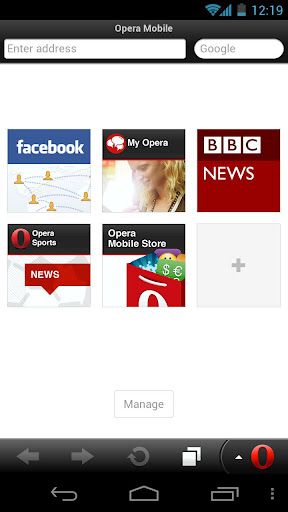
Tips for Gmail and Facebook on Opera Mobile

Opera Mobile is the best mobile browser, but only if you know how to use it.
Let's see how it works with two of the most popular websites, Gmail and Facebook.
With both, Opera Mobile shows, by default, the mobile interface, not even the most evolved touch version, it just shows the most basic.
But there are easy ways to solve this problem and choose the preferred interface: web, touch or basic mobile.
All the three versions are useful: the web version is the most complete (for example it allows you to delete single messages in Gmail threads, or to share posts on Facebook), the touch version is the most usable and pleasant on average smartphone touchscreen, the basic mobile is the fastest to load and use.
So how can you switch from one version to another in a few seconds?
First, if you haven't already, download Opera Mobile. I'm talking about the Android version, but there's also one for iPhone. There's a smaller app, Opera Mini, which is useful only if you have a very slow processor or a small RAM, because it is not able to correctly view every interface of both sites and the features for a faster and better view are available on Opera Mobile anyway.
So, once you have Opera Mobile all you have to do is to bookmark the correct addresses of the interface versions and learn a couple of important settings, which you can reach by tapping the "red O" for the menu, then Settings
First, it is useful to set the Opera Turbo ON, which shows a lighter version of the site downloaded from the Opera servers. It is also extremely useful to set Opera Link ON, you'll have to create a free account but you'll be able to sync your Opera Mobile bookmarks with the bookmarks of the Opera desktop browser, so you can back up the bookmarks and easily recall them if you install Opera Mobile on another smartphone.
Talking about general settings, you'll find the option to show the Exit button in the menu in the Advanced settings.
Here are the bookmarks and the correct settings for each.
Gmail WEB interface: Single column view ON and keep the Zoom at 150% at least.
Gmail TOUCH interface: As above
Gmail MOBILE interface: As above
Facebook WEB interface: Single column view OFF, the Zoom in the settings doesn't matter as it doesn't change, you'll have to pinch to zoom.
Facebook TOUCH interface: Single column view ON. Actually, it doesn't really matter for this version, but the most of the sites are better viewed with the single column view on, so you better keep this as the default option and turn it off only when needed. Keep the Zoom at 150% at least.
Facebook MOBILE interface: As above.